Chat with MarketCheck Data
via MCP Connector
Connect Claude to the MarketCheck MCP server in under 5 minutes — works on both claude.ai and Claude Desktop. Query live listings, VIN history, pricing predictions, and more — no code required.
Video Tutorial
Watch the full setup walkthrough
Step-by-step Instructions
Open the Add Custom Connector dialog
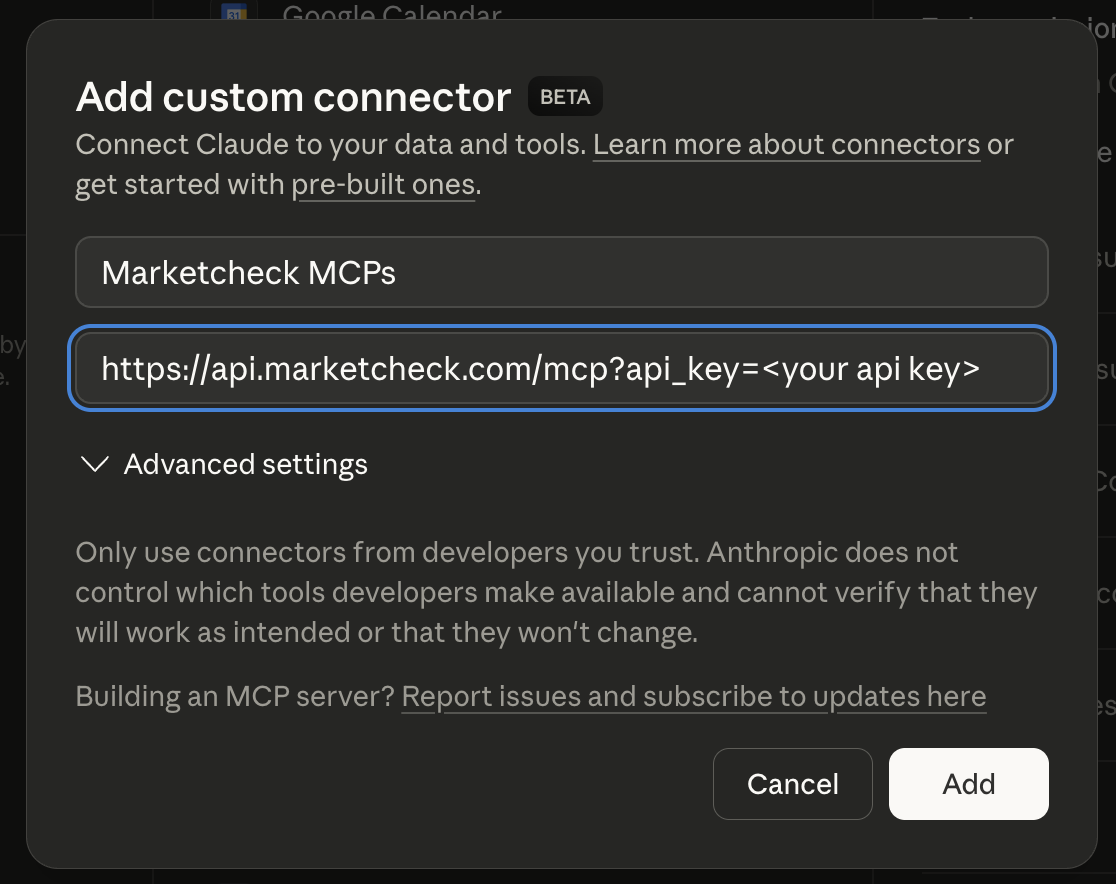
Configure the MarketCheck MCP connector
- Name:Marketcheck MCPs
- URL:https://api.marketcheck.com/mcp?api_key=<your api key>
Replace <your api key> with your actual MarketCheck API key, then click Add.
Don't have an API key yet? Get one at developers.marketcheck.com.
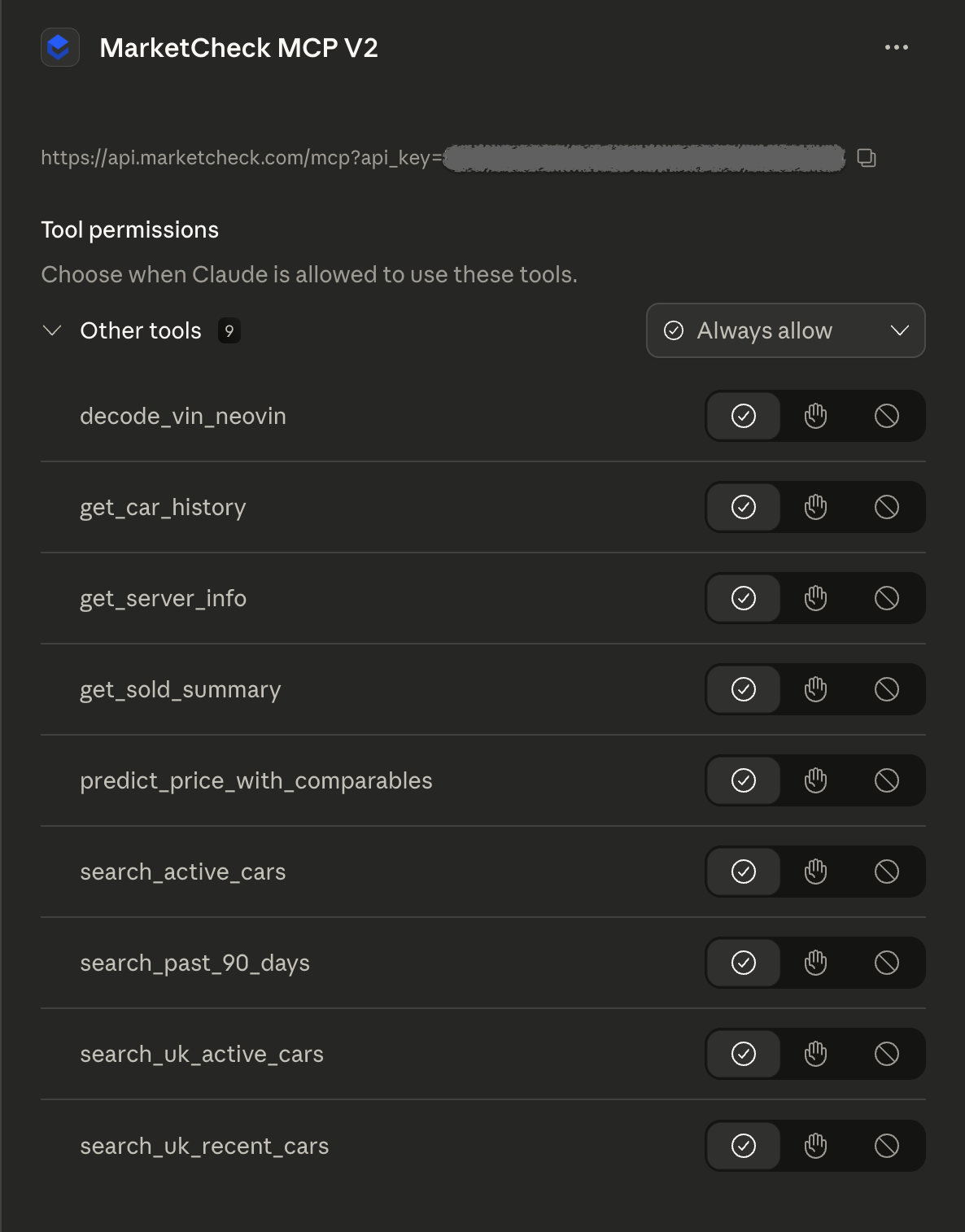
Grant Always Allow permission to all tools
In the Other tools section, click the dropdown on the right and select Always Allow. This grants permission to all 9 MarketCheck tools automatically.
The tools include: decode_vin_neovin, get_car_history, search_active_cars, predict_price_with_comparables, and more.
Start chatting with MarketCheck data
“What are the most popular SUVs for sale in Texas right now?”
“Decode VIN 1HGCM82633A123456 and show me its history”
“What is the predicted price for a 2022 Toyota RAV4 with 30k miles in CA?”
Want specialised skills for your role?
Install a MarketCheck Cowork plugin to get AI-powered workflows tuned for dealers, analysts, appraisers, lenders, and more.